SayLayer: Screen Reader and Accessibility for uGUI
A downloadable tool
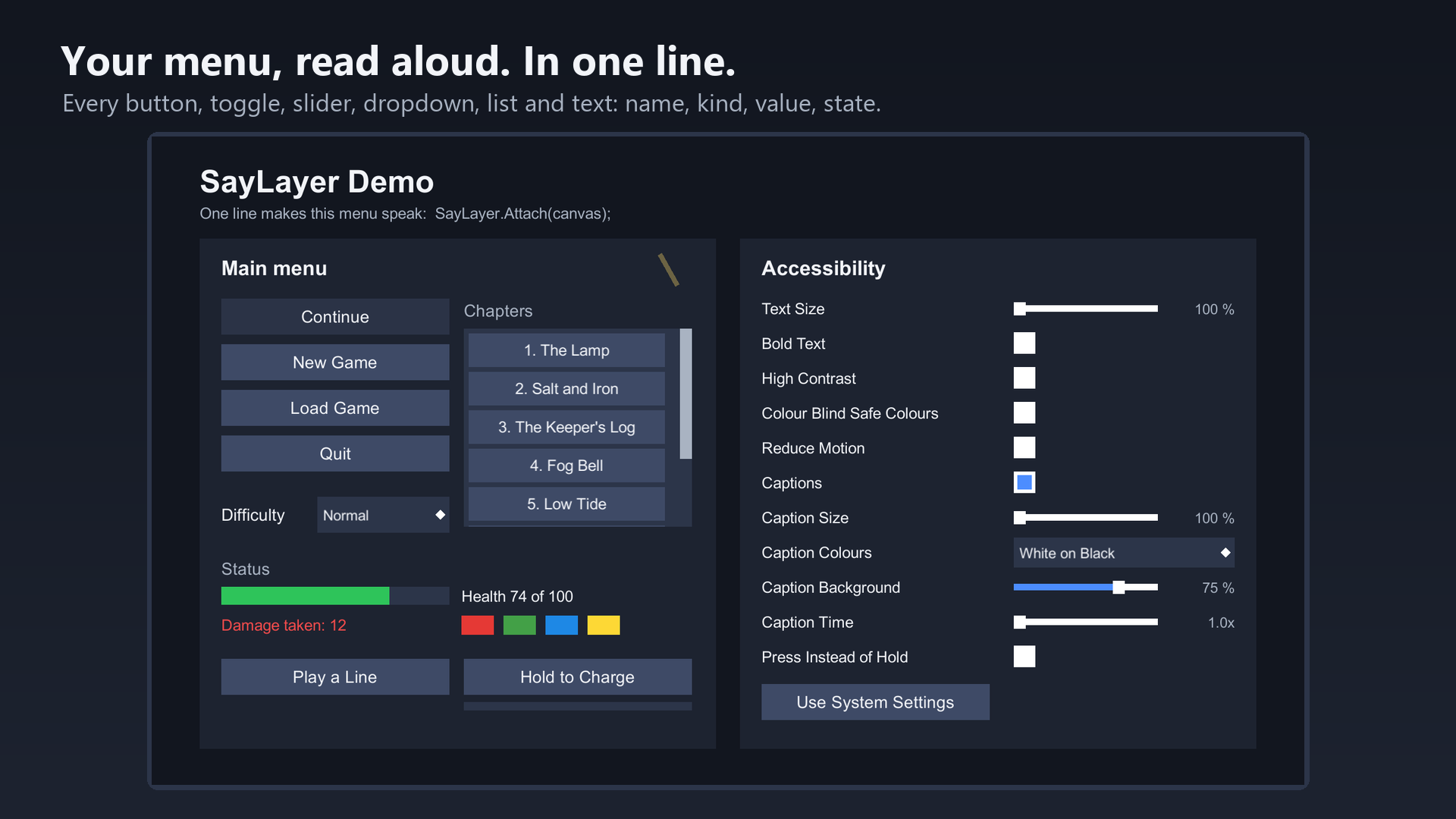
Make your uGUI menus speak, in one line:
SayLayer.Attach(canvas);
Every visible button, toggle, slider, dropdown, input field, scroll view and piece of text on that canvas becomes something the player's screen reader can find, read and operate: with its name, its kind, its value and its state, kept up to date while the game runs. No interface to implement, no base class, no manager in the scene, no change to your prefabs.
Unity 6 ships an accessibility module, and its own manual says it does not build the accessibility tree from your UI. You have to describe every element by hand and keep it in sync. SayLayer is that missing piece.
It Reads What Is Already On Screen
Names come from what a sighted player sees: a button's label, the text beside a slider, the caption next to a dropdown. Sliders announce the reading beside them, "150 %", not a share of their range. Toggles say checked or not checked in the player's language. Disabled controls say so. Password fields never reveal what was typed.
The reading order is the one a person uses: block by block. A menu card on the left and an options card on the right are read card by card, not line by line across both.
Open dropdowns and scroll views are built the way Unity's documentation asks: options and list items are children, a scroll gesture turns a page and announces "Page 2 of 5", and whatever the screen reader or the gamepad moves to is scrolled into sight.
Icon buttons get a name with one component, SayLabel. Decoration disappears with SayIgnore. Most menus need neither.
Verified With Narrator, Not Just Claimed
Every element was checked through Windows UI Automation, the interface Narrator reads from, and by listening with Narrator. Works with Unity 6000.3.25 (LTS) and with 6000.4.5 and newer. One thing worth knowing before you buy: Unity 6000.4.1 and 6000.4.3 pass nothing at all to Windows, not even Unity's own example, so use 6000.4.5 or newer on the 6.4 line.
Android (TalkBack) and Apple's VoiceOver are served through the same Unity module; they have not been verified on a device by me yet, and the manual says so.
The Settings Players Look For
All of them start from the operating system. A player whose phone or Windows already has larger text, high contrast or no animations gets the same in your game without searching for it. Once they change something in the game, their choice wins. On Windows, where Unity reports nothing, SayLayer reads these settings from Windows itself.
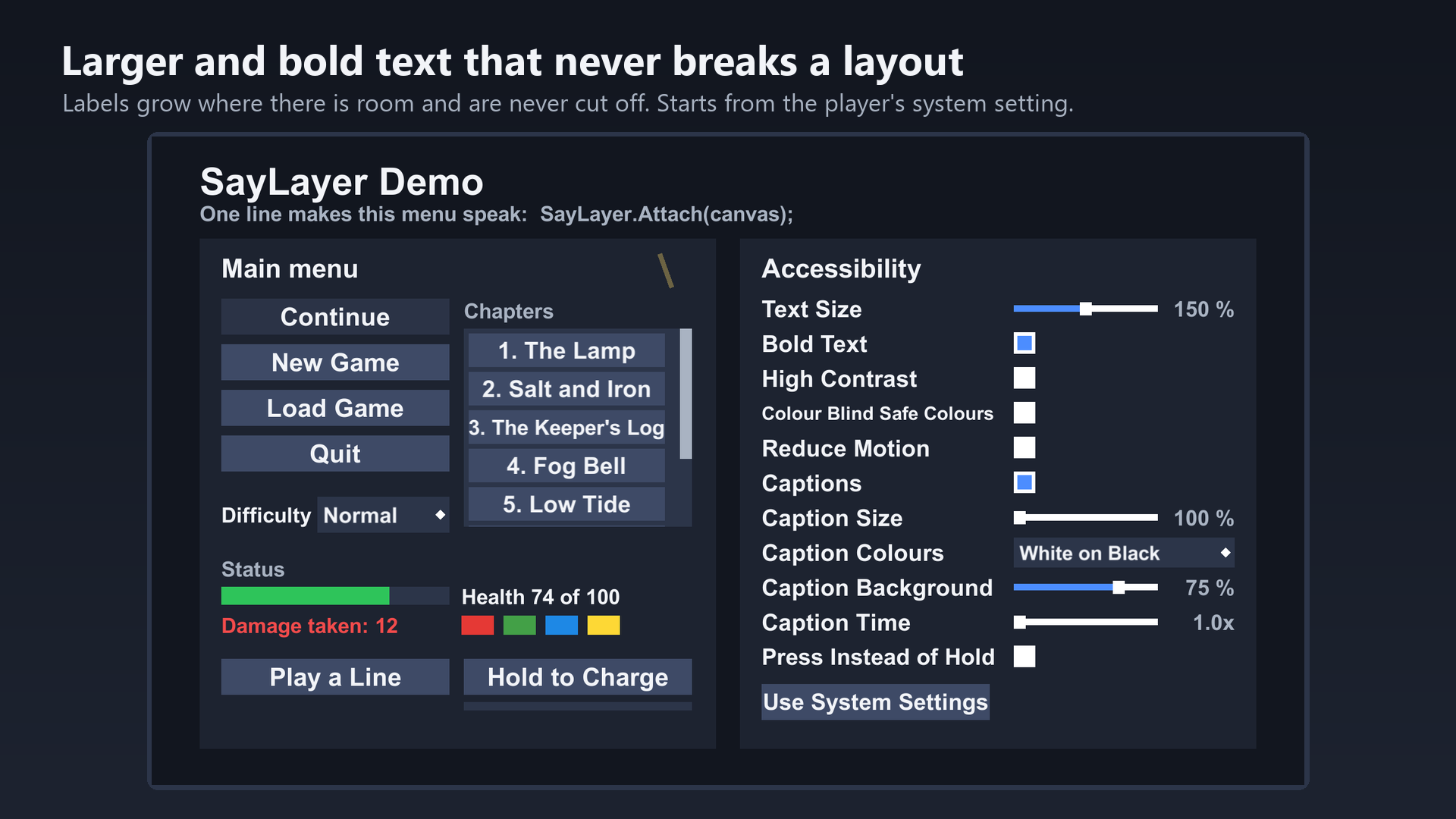
Larger and bold text: up to twice the size, for uGUI text and TextMeshPro. A label grows where it has room and is never cut off by growing, and never shrinks below the size you designed.
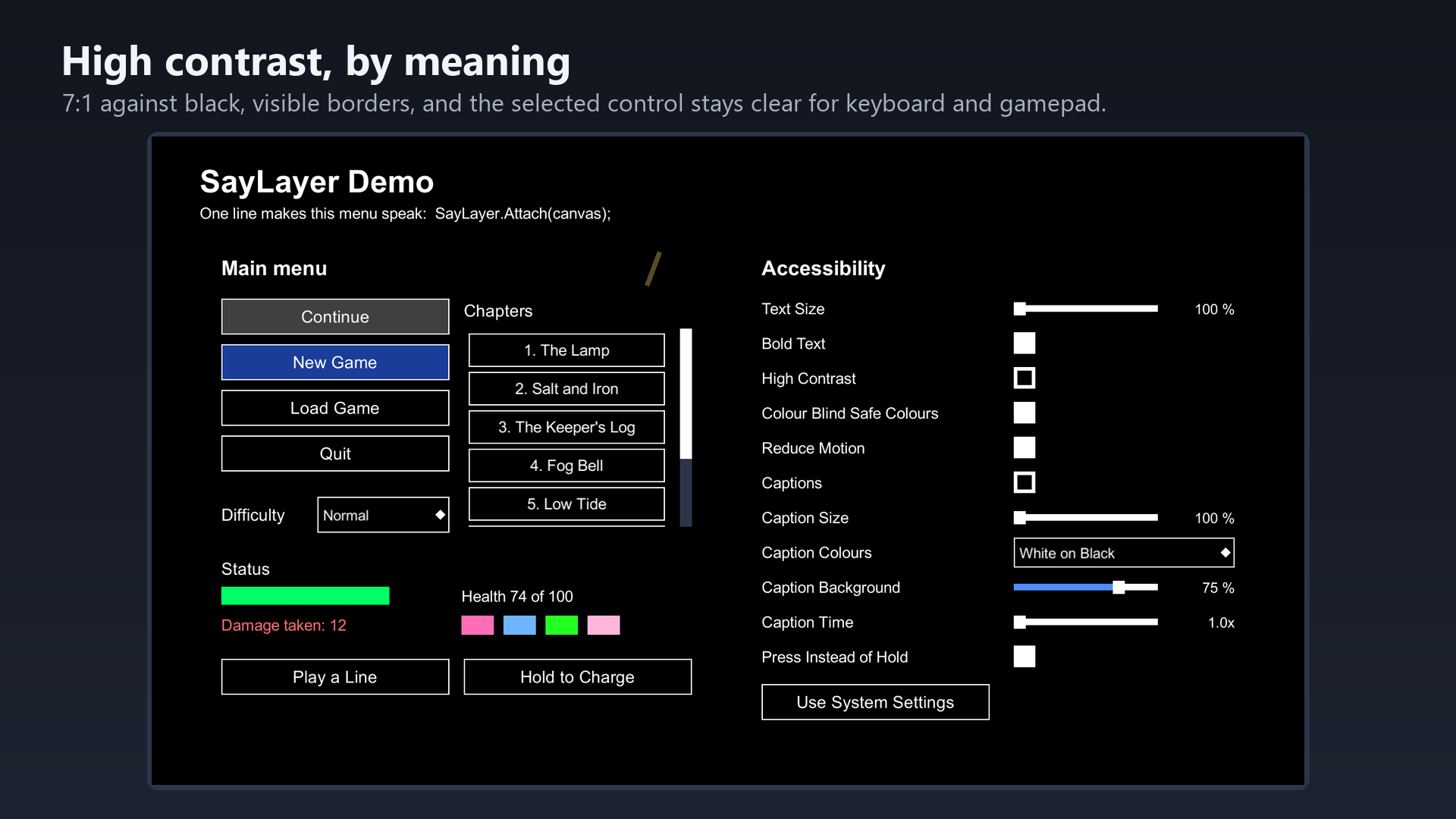
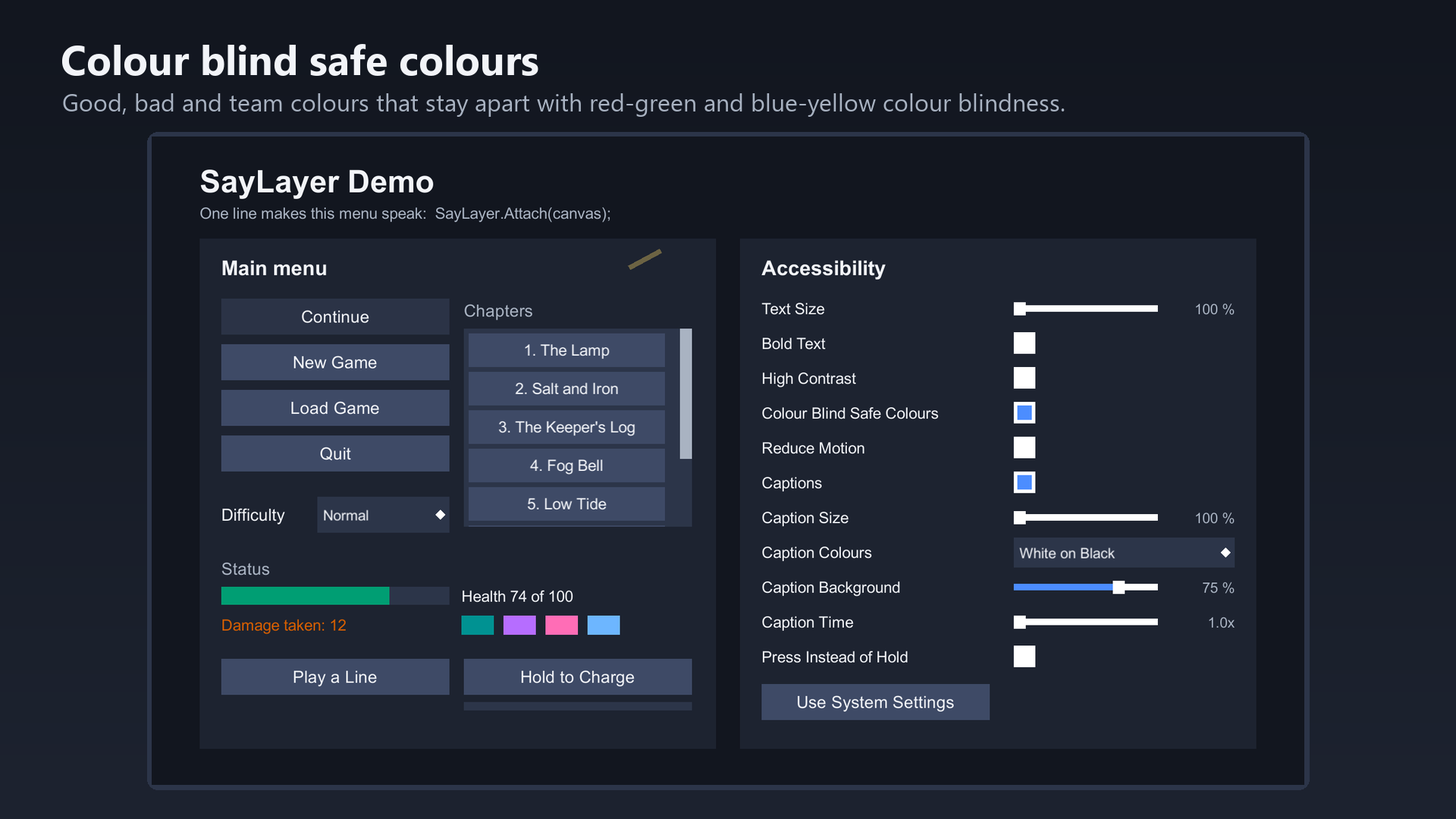
High contrast and colour blind safe colours: by meaning, never by guessing. Mark a graphic as text, panel, accent, good, bad or one of several team colours, and SayLayer swaps it. Every high contrast colour reaches 7:1 against black, buttons keep a visible border, and the selected control stays clearly visible for keyboard and gamepad players. The audit window adds the markings to plain text and backgrounds for you.
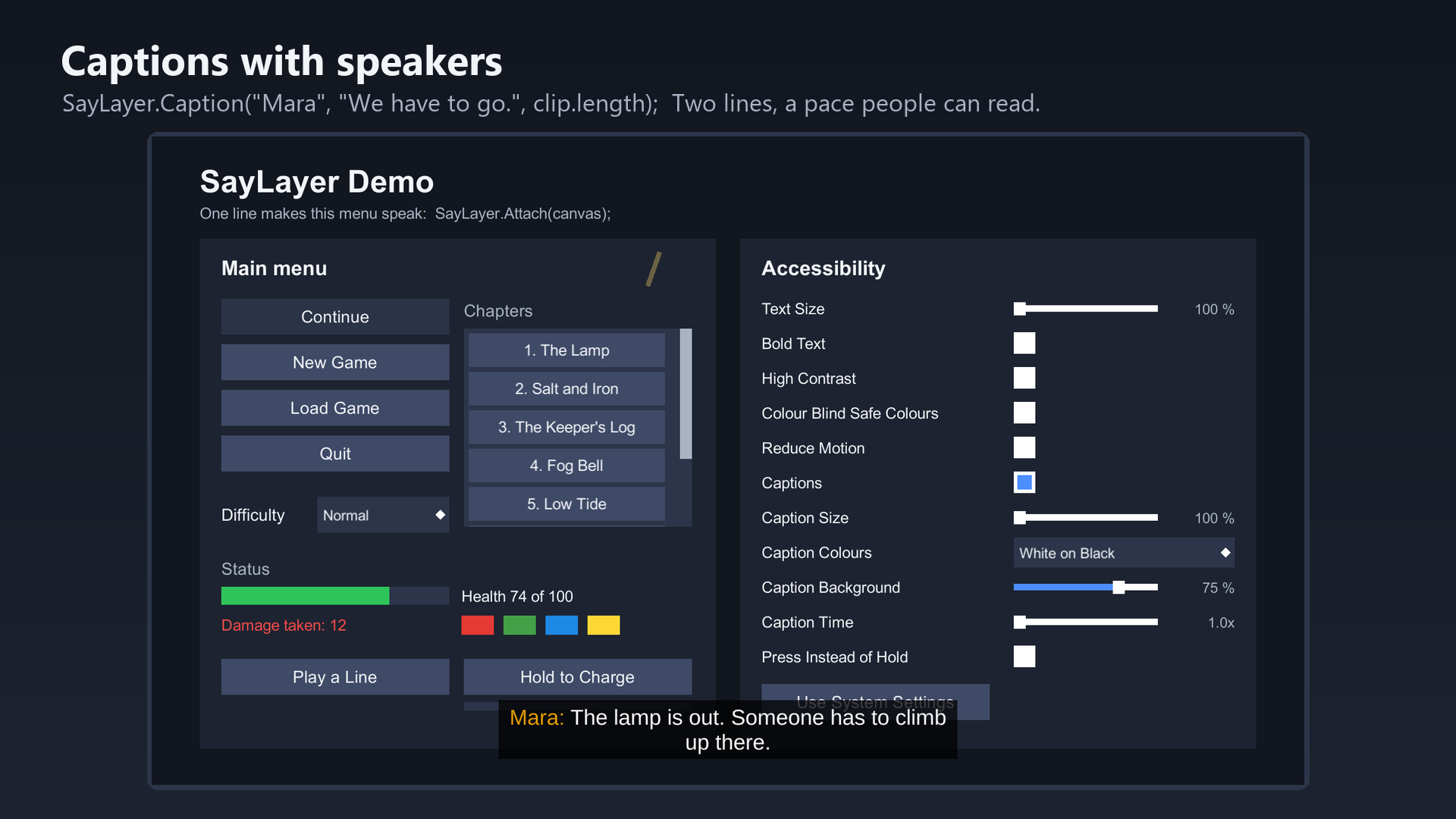
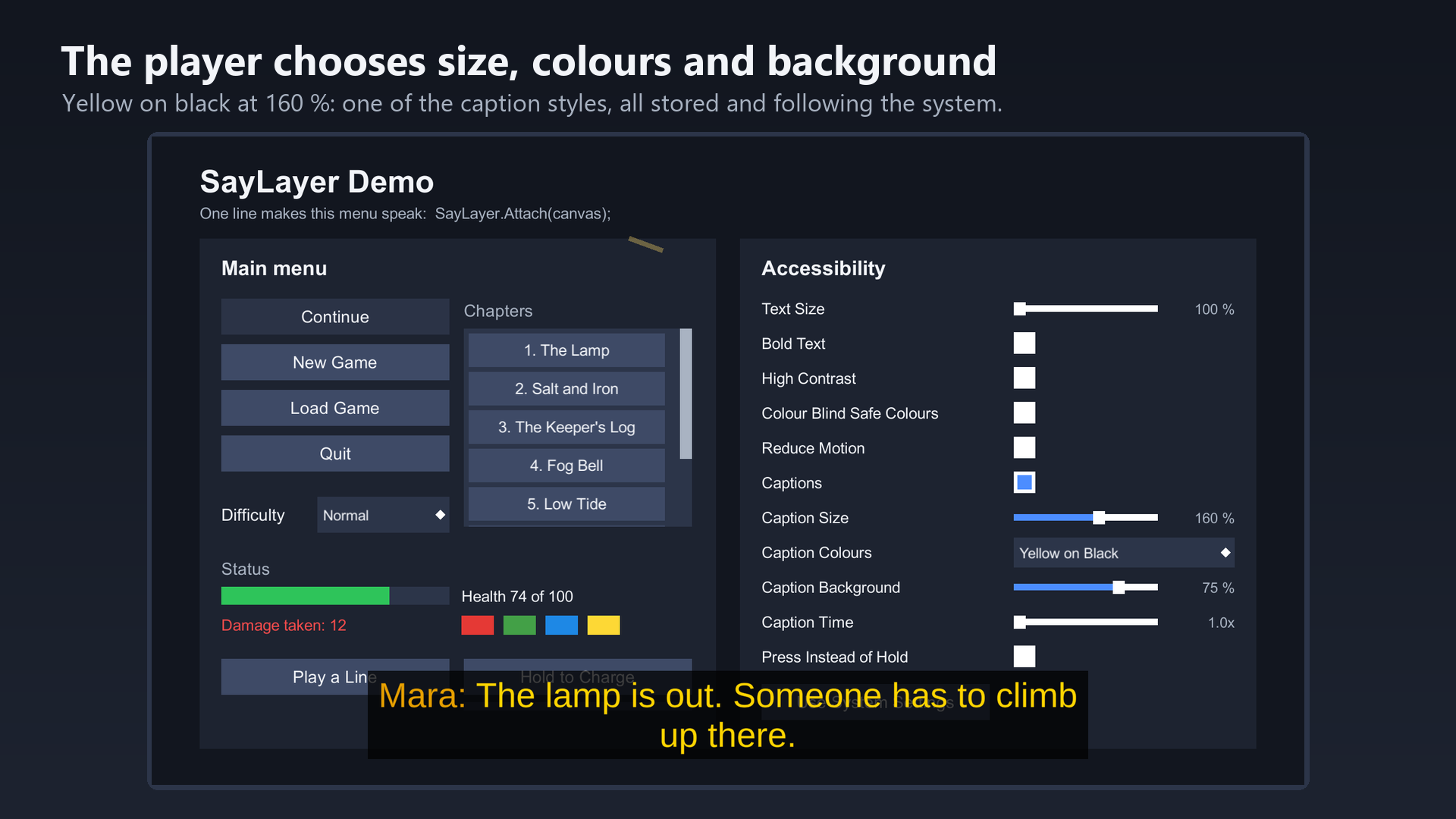
Captions: SayLayer.Caption("Mara", "We have to go.", clip.length). Speaker names and colours, at most two lines of about 42 characters, a reading pace a person can follow, the player's choice of size, colours, background opacity and extra time. Inside the safe area.
Less motion: buttons stop fading, lists stop gliding and bouncing, and a component switches off your own camera shake or particles.
Press instead of hold: one line turns any hold action into a toggle, for any input, with an extension for the Input System.
Every setting is one static property you can read from your own code, with an event when it changes. Storage is PlayerPrefs, or your own save file through a five-method interface.
An Audit That Does Not Cry Wolf
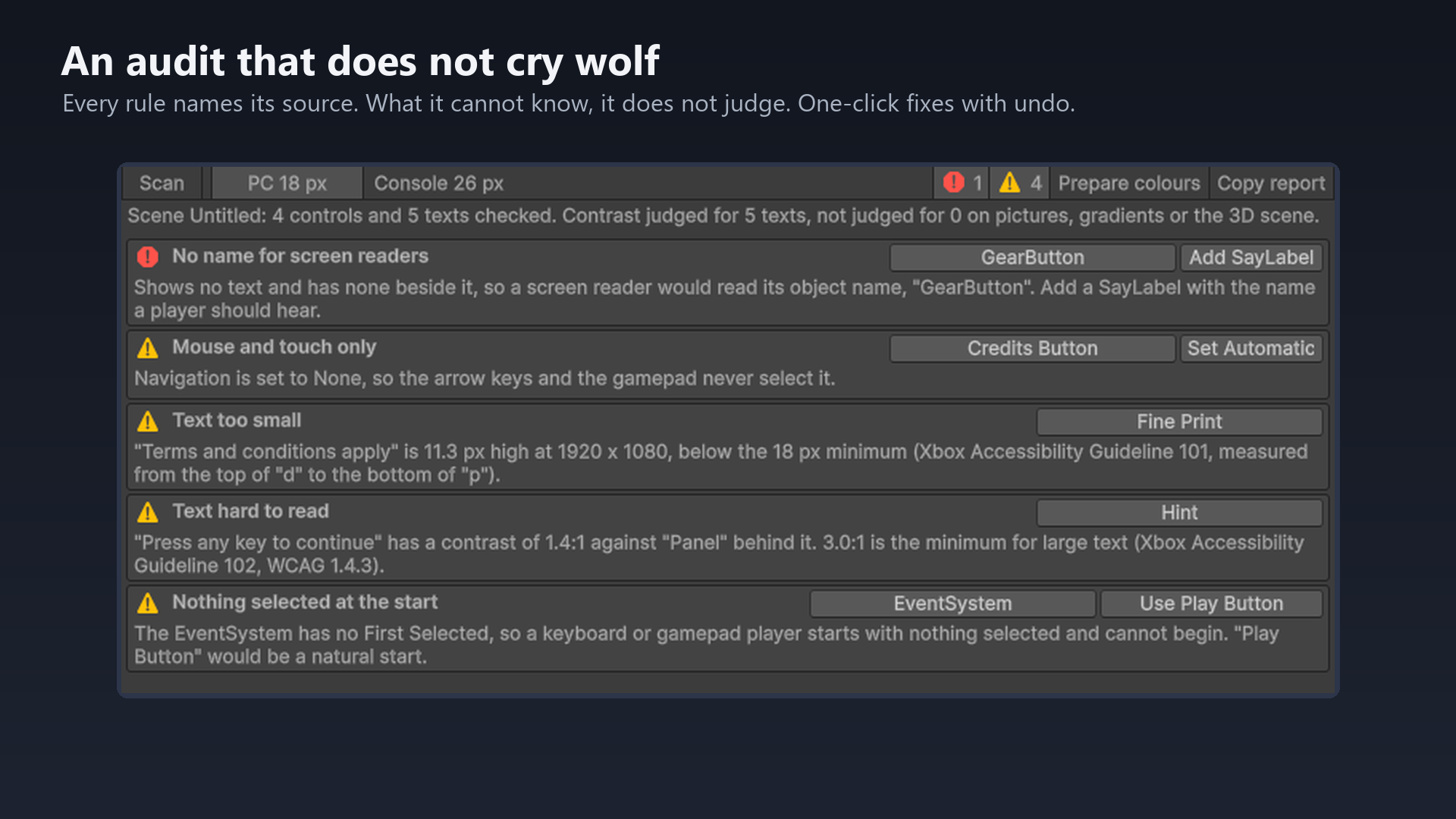
Window > SayLayer > Accessibility Audit lists controls without a name, text that is too small or too faint, controls a keyboard or gamepad can never reach, and a missing first selection. Every rule names its source: the Xbox Accessibility Guidelines and WCAG. Text height is measured on the font itself, as the guideline defines it.
What the audit cannot know, it does not judge: text on a picture, a gradient or the 3D scene gets no contrast verdict, and the report says how many were left out. Click a finding to select the object. Fix the common cases with one click, with undo.
Works With Settingsnow
If SettingsNow is in your project too, its menu gets an Accessibility tab with every setting, without a line of code. Neither package needs the other.
Built To Cost Nothing
While no screen reader runs, the screen reader part does nothing at all. While one runs, a look at 60 elements takes about 0.3 milliseconds and creates no garbage, measured. The tree is updated in place, so the screen reader's cursor never jumps back to the start when a value changes.
Honest Limits
uGUI only, not UI Toolkit. Only the screen readers Unity serves: Narrator, VoiceOver, TalkBack; not NVDA or JAWS. No speech of its own. No automatic image descriptions. SayLayer supports accessibility guidelines; on its own it does not make a game compliant with any law or standard.
Full C# source, 167 tests, a demo scene that shows everything on one screen, and a manual that fits in one sitting.
Support: daniel.schnurbusch@web.de
In The Download
- SayLayer_1.0.0.unitypackage: the full C# source, demo scene and tests
- SayLayer_Manual.pdf: the manual, 8 pages
- LICENSE.txt: per-seat license for your own commercial projects
Requirements
Unity 6000.3.25 (LTS), or 6000.4.5 and newer. uGUI. Windows screen reader verified with Narrator.
Also on the Unity Asset Store (in review).
Purchase
In order to download this tool you must purchase it at or above the minimum price of $49.99 USD. You will get access to the following files:
Leave a comment
Log in with itch.io to leave a comment.